Book a free demo
Restaurant · Template Walkthrough · Full System Overview

Your restaurant
digitally transformed

A complete restaurant ordering system based on the live Nola's Events code. Table entry, multi-person ordering, per-person item splitting, kitchen display, order status tracking, and full admin control. See every screen below.

Table Entry Digital Menu Add Persons Per-Person Split Kitchen Display Order Status
14
Day Launch
9
Screens
25+
Features
24/7
Ordering
1 Table Entry

Start with table number or takeout

Customers enter their table number or select takeout to begin. The system remembers their table throughout the ordering process, displayed in the header with a live indicator dot.
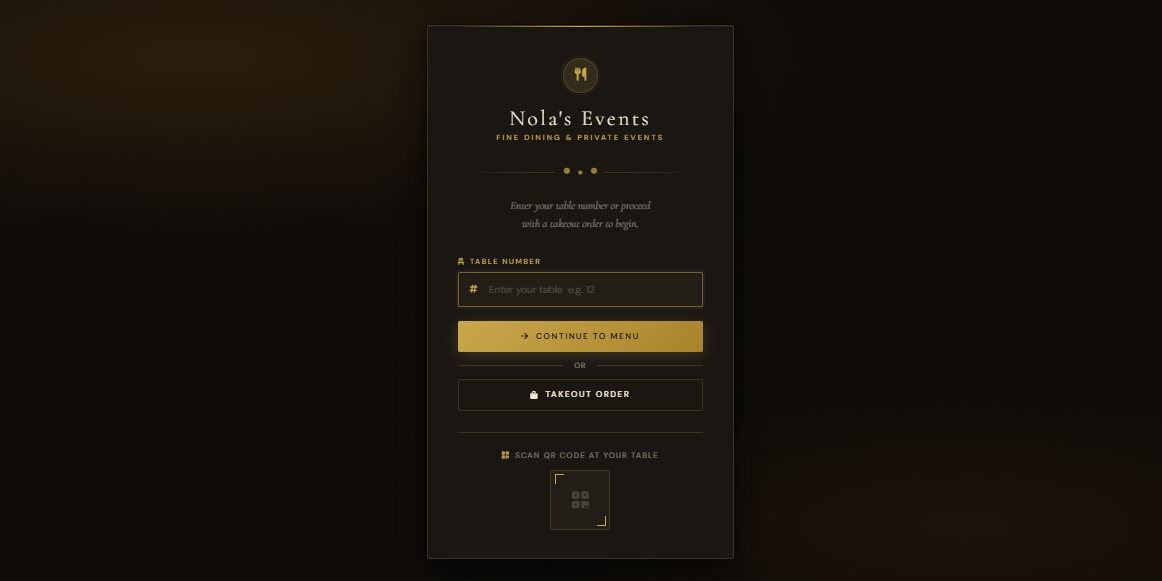
Table entry screen
index.php — Table Entry
Entry Point
Enter Table Number or Takeout
Tap to preview
index.php · Table number input with elegant card design View Live
Table Number
Enter your table number — persists throughout the order in session storage.
Takeout Option
One-click takeout selection for customers not dining in.
Live Indicator
Header shows current table with pulsing dot — clear context throughout.
2 Digital Menu

Beautiful category tabs and item cards

The digital menu displays sections loaded from the database — appetizers, entrees, desserts, beverages. Each item shows name, description, price, and dietary tags. Items load with elegant skeleton animations.
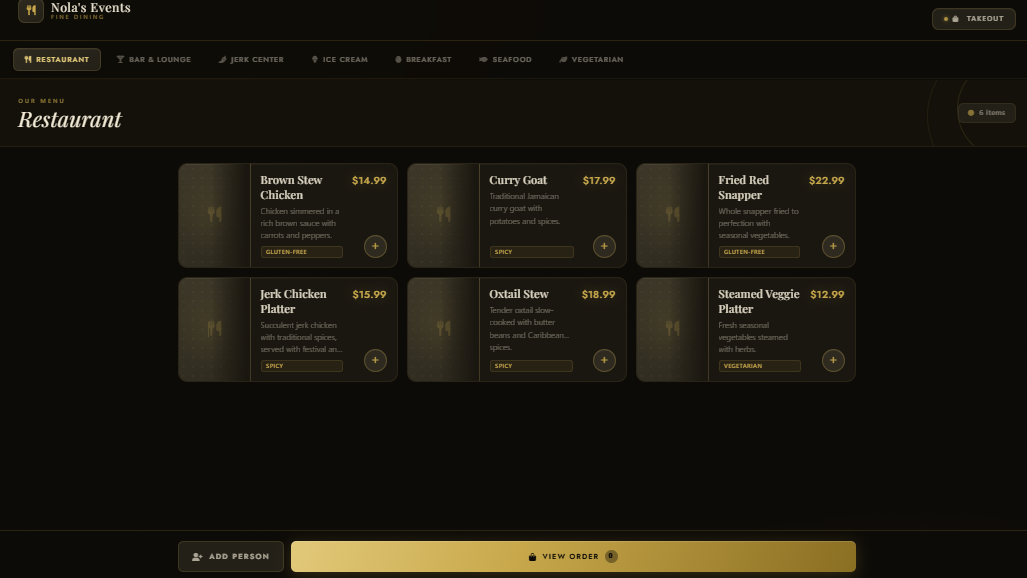
Restaurant menu with tabs
menu.php — Desktop View
Digital Menu
Menu with Category Tabs
Tap to preview
menu.php · Restaurant menu with category tabs and item cards View Live

Skeleton loaders: While menu items load, elegant skeleton cards appear — users see structure immediately, no blank screens.

Dynamic Sections
Menu sections loaded from database — easily add, edit, or reorder categories.
Dietary Tags
Features like "spicy", "vegan", "gluten-free" appear as badges on items.
Add to Order
One-click add to current person's order — visual feedback confirms addition.
3 Multi-Person Ordering

Add people — track who ordered what

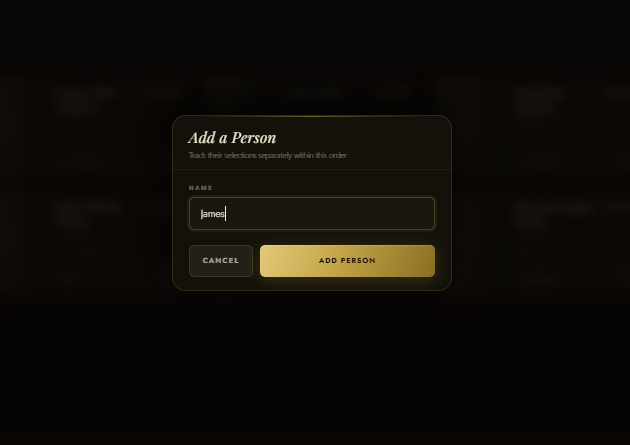
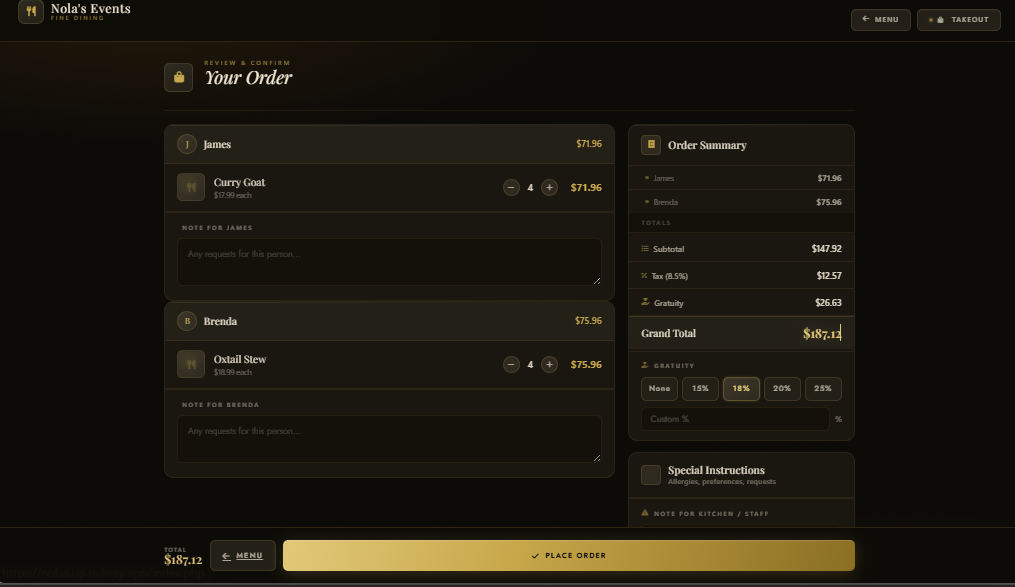
The unique feature of this system: customers can add multiple people to an order. Each person gets their own avatar, name, and item list. Perfect for groups dining together.
Add person modal
Add Person Modal
Multi-Person
Add Person Modal with Name Input
Tap to preview
menu.php · Add person modal with name input and avatar generation View Live
Person with items
Person-Specific Items
Person View
Each Person Has Their Own Items
Tap to preview
checkout.php · Order review with per-person breakdown and gratuity View Live
Person Avatars
Each person gets an avatar with their initial — visual separation of orders.
Per-Person Subtotal
See what each person owes at a glance — perfect for group billing.
Person Notes
Add special instructions per person — "no onions for Sarah".
4 Checkout

Review order, add gratuity, place order

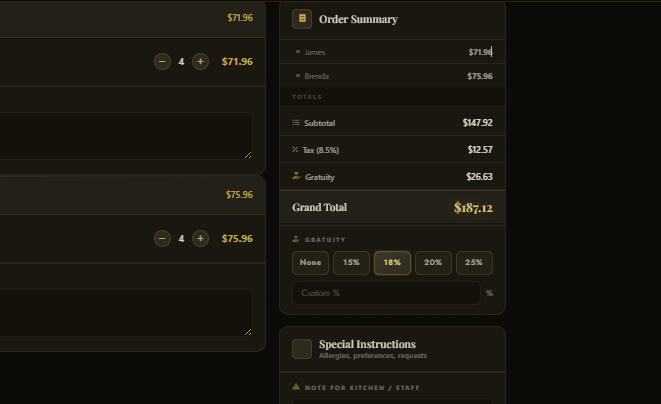
The checkout page shows a complete breakdown of the order — items grouped by person, subtotals, tax, and gratuity selection. Special instructions for the kitchen can be added before placing the order.

Checkout screen
Core Feature
Checkout with person breakdown
checkout.php — Review Order
Checkout
Order Summary with Per-Person Breakdown
Tap to preview
checkout.php · Order review with per-person breakdown and gratuity View Live
1

Review Items

See all items grouped by person with quantities and prices.

2

Select Gratuity

Choose from preset percentages (15%, 18%, 20%, 25%) or enter custom amount.

3

Add Instructions

Special notes for the kitchen — allergies, preferences, requests.

4

Place Order

One click to send order to kitchen — order number generated immediately.

5 Kitchen Display System

Orders appear instantly in the kitchen

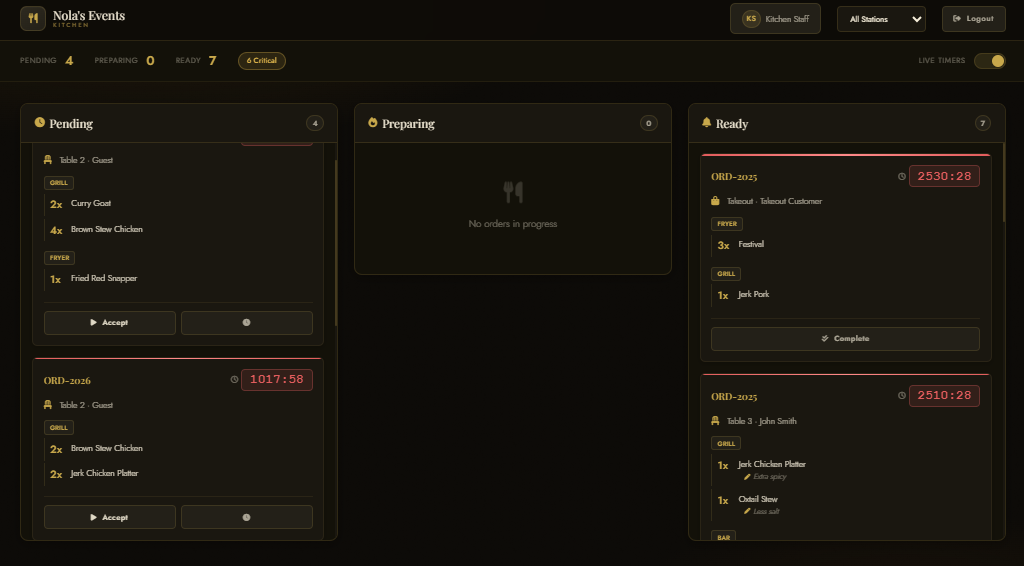
When an order is placed, it appears on the kitchen display. Kitchen staff see table number, items grouped by person, special instructions, and can update status as they prepare.
Kitchen display
kitchen.php — Kitchen Display
Kitchen Display
Live Order Queue with Timers
Tap to preview
kitchen.php · Kitchen display system with timers and status controls View Live

No more lost tickets. Orders appear on screen with timers. Kitchen marks items as "preparing" and "ready" — status updates in real-time to customers.

Order Timers
Shows elapsed time for each order. Warning colors after 5 min, danger after 10 min.
Station Filter
Kitchen staff filter by station — grill, bar, fryer, salad, etc.
Status Updates
One-tap buttons to move orders from pending → preparing → ready.
6 Order Status Page

Customers track their order in real-time

After placing an order, customers get a unique order number and can track its status — pending, preparing, ready. Progress bar shows completion percentage based on items prepared.
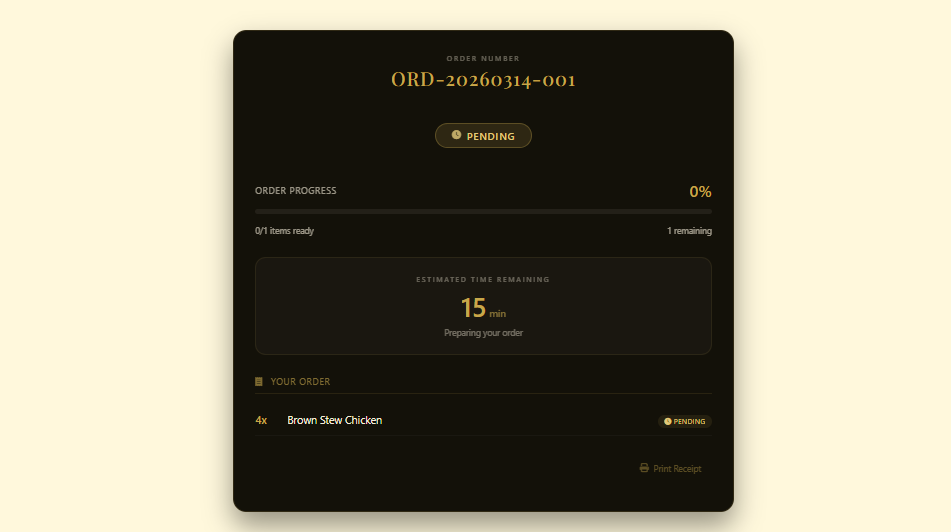
Order status page
confirmation.php — Order Status
Status Tracking
Live Order Status with Progress Bar
Tap to preview
confirmation.php · Order status tracking with progress bar View Live
Status
Badge
Progress
Timer
Pending
Pending
0%
Preparing
Preparing
50%
5 min
Ready
Ready
100%
Ready
Completed
Completed
100%
Done
Progress Bar
Shows percentage of items completed — customers see exactly how far along their order is.
Estimated Time
Estimated remaining time based on order complexity and current status.
Auto-Refresh
Page refreshes every 10 seconds — always up to date without manual reload.
7 Admin Dashboard

Complete restaurant overview

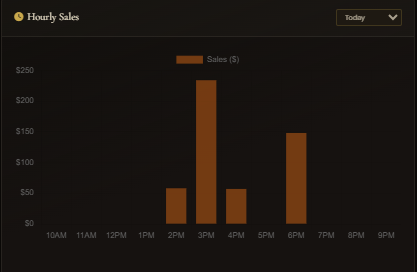
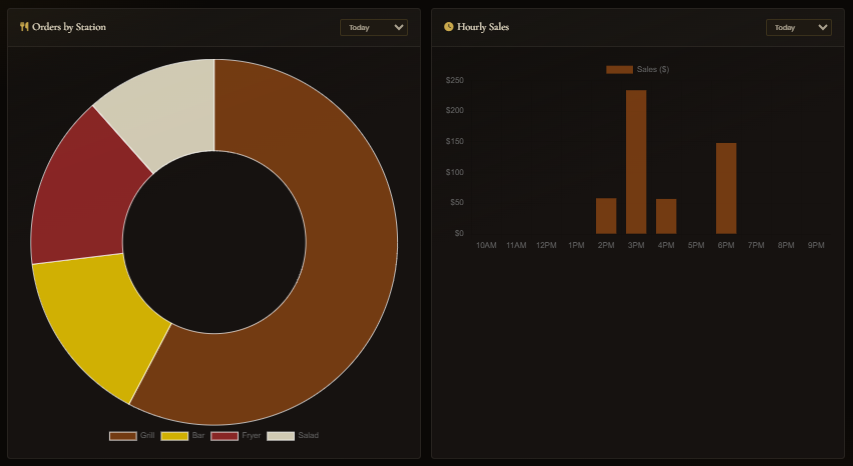
The admin dashboard shows today's orders, revenue, active staff, occupied tables, and real-time charts. Recent activity and top items help you understand your business at a glance.
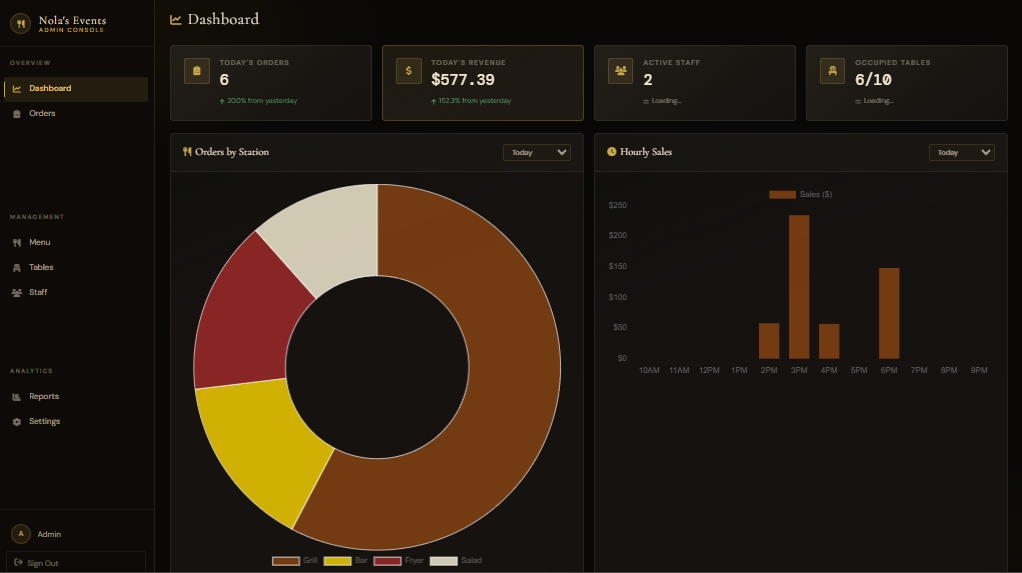
Admin dashboard
admin.php — Admin Dashboard
Dashboard
Admin Dashboard with Stats and Charts
Tap to preview
admin.php · Restaurant dashboard with stats and recent activity View Live
Orders by station chart
Charts
Orders by Station
Tap to preview
Hourly sales chart
Sales
Hourly Sales
Tap to preview
Recent Activity
Live feed of new orders, status changes, and system events.
Top Items
See which menu items are selling best — adjust your menu based on data.
Active Staff
Monitor staff currently logged in and working.
8 Menu Management

Add, edit, organize menu items and sections

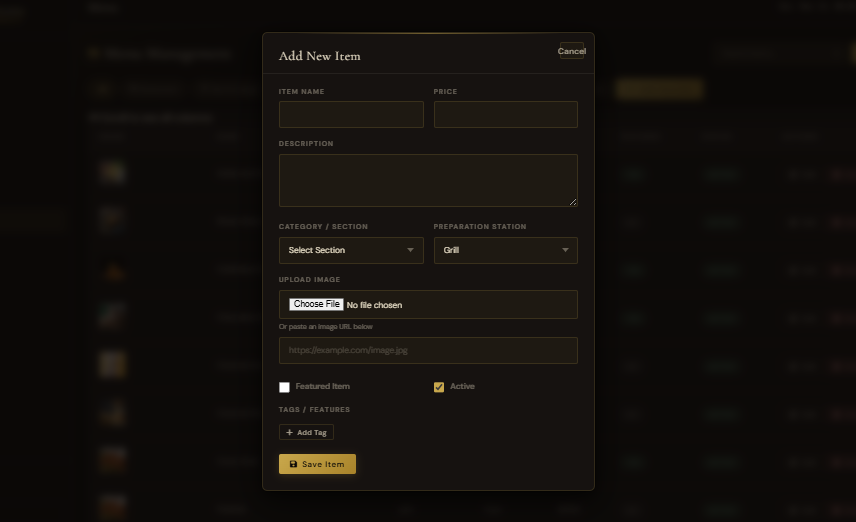
The admin panel lets you manage your entire menu. Add new sections, create items with descriptions and prices, upload images, set preparation stations, and add dietary tags.
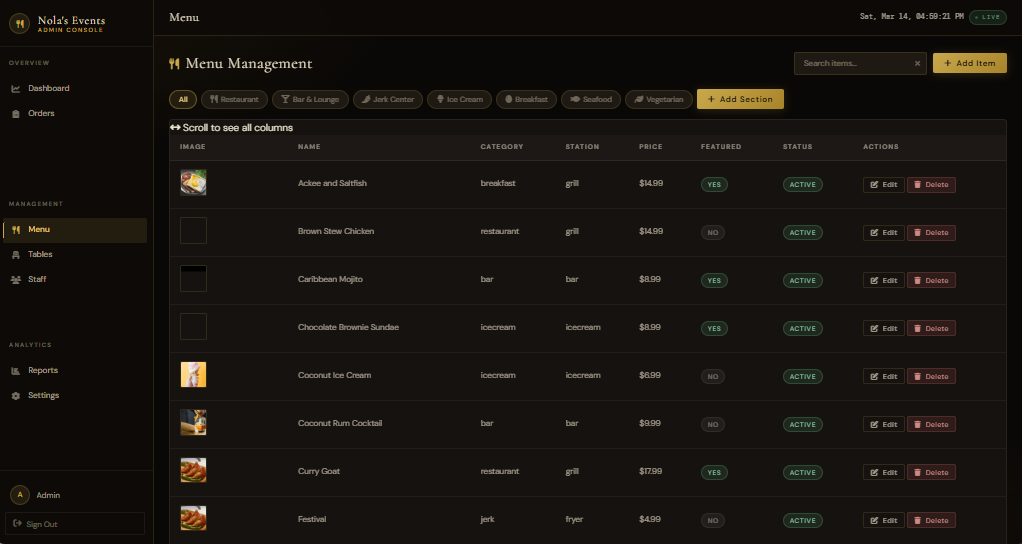
Menu items table
Menu Items
Menu Items Management
Tap to preview
Add menu item
Add Item
Add/Edit Menu Item
Tap to preview

Manage Sections

Create, edit, and reorder menu sections (appetizers, mains, desserts, etc.).

Add Items

Name, description, price, station, image URL, and dietary features.

Features/Tags

Add tags like "spicy", "vegan", "gluten-free" — appear as badges on menu.

9 Order Management

View, filter, and manage all orders

The orders management screen shows all orders with filtering by status, search by order ID or customer name, and detailed view of each order's items with per-person breakdown.
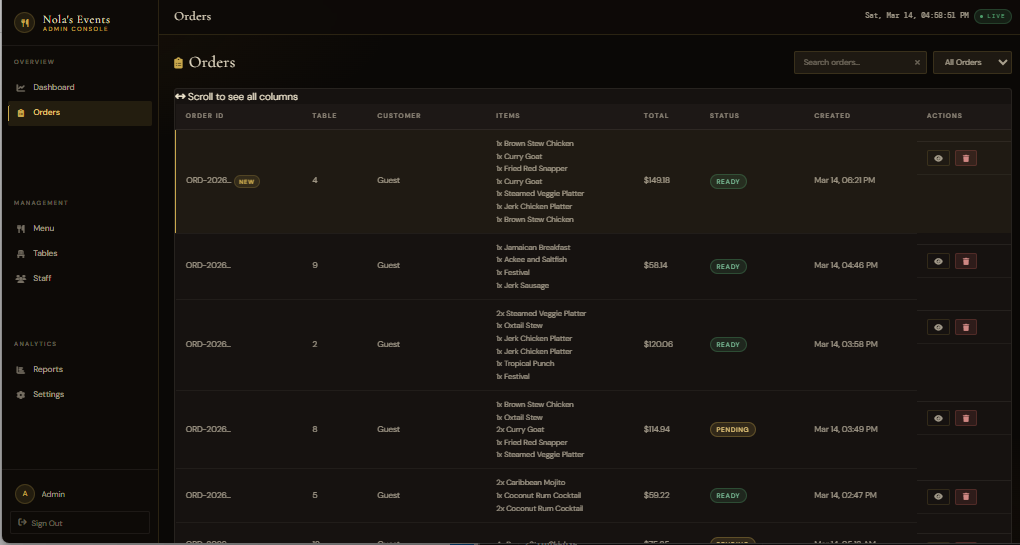
Orders management
admin/orders.php — Orders Management
Orders
All Orders with Status Badges
Tap to preview
admin/orders.php · Complete order management with filters View Live
Order ID
Table
Customer
Total
Status
ORD-20260313-001
12
Person 1, Person 2
$51.84
Pending
ORD-20260313-002
5
Person 1
$34.50
Preparing
ORD-20260313-003
8
Person 1, Person 2, Person 3
$97.25
Ready

Order details modal: Click any order to see full details — items grouped by person, special instructions, and order timeline.

Search Orders
Search by order ID or customer name — find any order instantly.
Status Filter
Filter orders by status: pending, preparing, ready, completed, cancelled.
Update Status
Change order status directly from the admin panel — updates reflected everywhere.
Ready to launch your restaurant online?

Get this system for your restaurant

Launch a complete restaurant ordering system in 14 days. Digital menu, multi-person ordering, kitchen display, order tracking, admin dashboard — all of it, built and hosted for you.

$50,000
JMD — one-time setup
$5,000
JMD/month — hosting + support
14
Days to go live